
Everything You Need to Know About STEP Files
When we need to send 3D data between platforms, the STEP files are the universal language of our designs. These files enable the movement of complex geometry between programs without losing any information or encountering compatibility issues.
When we work with a neutral format on a model in our workflow, everyone has access to the model and can review it. Through the use of STEP files, we achieve a high degree of accuracy while ensuring smooth collaborative practice.
What are STEP Files?
A STEP file is a neutral 3D format made for getting around the data limitations of software. Many programs have their native languages, but this format allows you to share your 3D model without losing the native structure from one place to another.
The software does not just save a simple picture; it saves the entire model as a collection of high-precision surfaces and solid volumes. We can confidently open files made in one application and proceed to work with the same data in another application without fear of data loss.
Why This Format Drives Accuracy in Manufacturing?
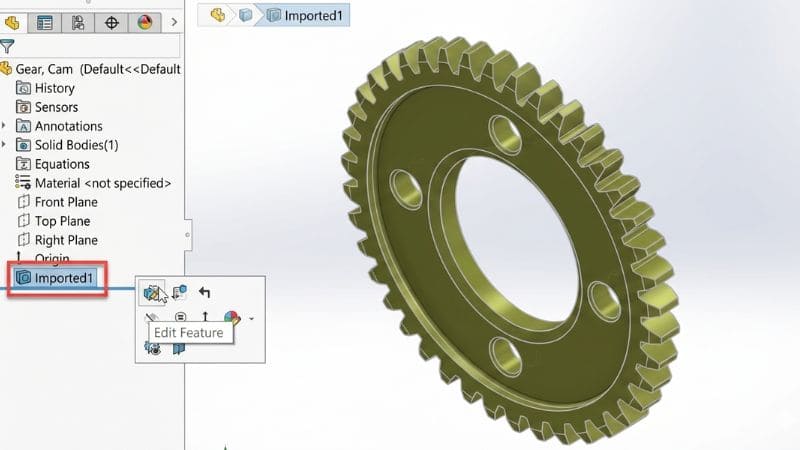
The main reason we use this for production is that it is a geometric shape, not just a mesh. Many other formats reduce shapes to tiny triangles, which cause rough edges or ‘facets’ that deviate from the original design intent.
Mathematical definitions are used in these files to define curves and surfaces. Consequently, when we send a file out for review or production, the size is assuredly exact. By retaining this degree of accuracy, we stand to have no errors in translation, with the physical result being consistent with the digital one.
Key Benefits of STEP Files
Complete Geometry and High Precision
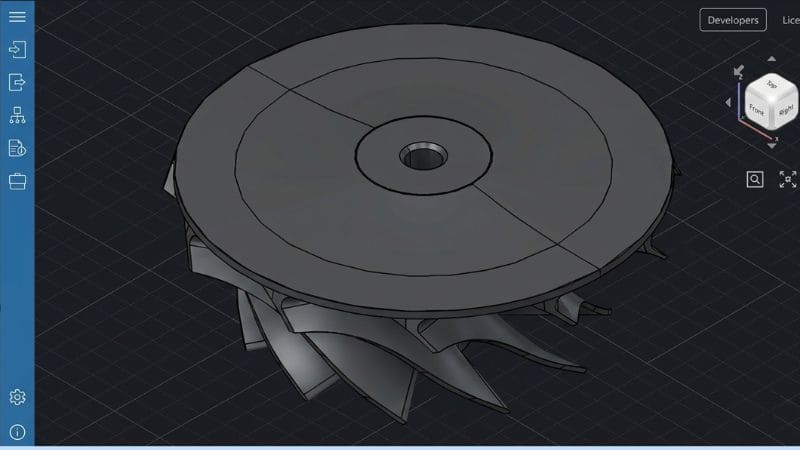
In contrast to mesh formats that create a jagged surface, STEP 3D models define solid bodies using mathematics. It guarantees the smoothness of every curve and edge. Such detail is important in tight tolerances because it provides an accurate digital twin of what we’re doing.
Cross-Platform Compatibility
Software friction remains one of the challenges that we must conquer. These neutral files serve as a common bridge between anything. When using STEP files in SolidWorks or using STEP files in AutoCAD, the data is the same. This capability enables us to collaborate with different teams regardless of what modeling tool they use.
Editability and Reusability
These file formats allow changes in the future, unlike frozen formats. Often, we can change features or lengthen or shorten dimensions even after exporting, since the geometry is stored as solids and surfaces. Being able to edit STEP files properly means we can reuse existing designs in subsequent iterations, saving us hours of work.
Rich Data and Completeness
A significant advantage because an entire assembly can exist in one file.
We are not dealing with a mere hollow shell; we are dealing with a full dataset that includes hierarchy and part relationships. It is now much easier to handle complicated projects in which every sub-component must be considered.
Efficient Compression
All these files are loaded with information, but are quite handy. They have a standardized text-based structure that keeps the file size acceptable while also retaining a high-quality 3D model. With this efficiency, it is easier to distribute a STEP file download using email or cloud storage.
Industry Acceptance
Because it is a global standard, it is widely used. When we dispatch our work, we do not have to worry that the recipient has the right viewer. Nearly every professional tool will open STEP files natively. According to the widespread adoption of standards, we can work efficiently with external partners, and our data will remain accessible for decades.
Limitations of STEP Files
Large File Size and Complexity
Since these files contain all the mathematical curves and solid faces, they can be quite heavy. Working on large assemblies that have a multitude of parts creates a huge amount of data that slows down the assemblies. We usually pay for complexity in the form of accuracy; however, we should remain careful not to overload our hardware when working on highly detailed STEP 3D.
Not Ideal for Direct 3D Printing
Most hardware intended for additive processes cannot read these files directly, even though we use them for designing. Normally, you need to convert your STEP files to STL before starting a build. Printing software generally requires a simpler mesh instead of the complex solids that exist in STEP files for Stampa 3D. Our workflow has to accommodate this intermediate STEP to progress from a virtual model to a real component.
Storage Efficiency
Saving thousands of these files may damage our digital infrastructure. Since they’re text-heavy and detailed, these take up more space than simpler, mesh-based ones. A solid storage strategy is what you’ll need, given that we like to keep an organized archive that ensures our STEP files download/transfer speeds function for the whole team.
Interoperability Quirks
Despite having a so-called universal format, we experience translation problems at times. Various software versions may interpret the same geometric data subtly differently, resulting in leaky solids or disconnected surfaces. When we open STEP files in a new environment, we sometimes need to spend time repairing these small gaps to bring the model back to its original state. Understanding how to carefully examine STEP files at the time of import will enable us to fix these small bugs before they adversely affect our production.
What Software Programs are Compatible with Opening, Creating, or Editing STEP Files?
Mainstream Modeling Tools
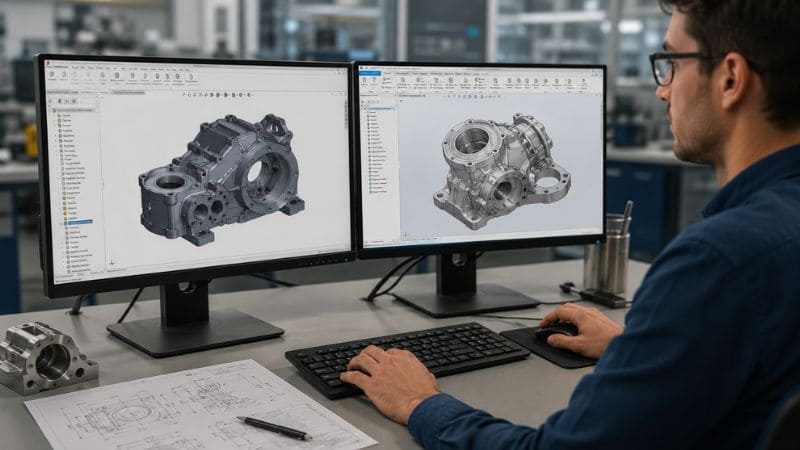
We repeatedly find that the ideal files for solid geometry editing are STEP files in SolidWorks or Autodesk Inventor. By utilizing these programs, we can easily import our data and use it almost as a native component.
Drafting and Layout Software
The "Import" command in AutoCAD readily accommodates STEP files for those with 2D and 3D in mind. Drafting and layout software. We can include intricate models in a more extensive design.
Free and Open-Source Options
If you are on a budget or need something quick, then tools like FreeCAD or Blender (with plugins) can open STEP files for exploration.
Lightweight Viewers
As far as lightweight viewers go, sometimes, we don’t need to make any changes. We only want to check out a design. For this, we can use a dedicated STEP file viewer. Or we can even view STEP files online. Most cloud-based collaboration tools are fine for this type of use.
Creating STEP Files: The Procedure
Geometry Finalization
Before exporting to CAD, we make sure that our 3D model is watertight. This means that there are no gaps between surfaces and all solids are fully defined.
Choose Export Command
In the main design software, we click on Save As or Export.
Final Format
We choose "STEP" or ".stp" from the list of choices. Usually, there’s a choice of versions, say between AP203 and AP214. Typically, if we need to maintain colors and assembly layers, we will go for AP214.
Settings Configuration
By examining the export options, we check that the scale and units correspond to what we had originally intended. Once confirmed, we create the file.
Output Verification
To verify the newly created STEP files, it is recommended to utilize another STEP file viewer. This quick check ensures that the STEP 3D files we’ve generated are now ready to be used by others without misinterpretation.
How to Open, Read, and Convert a STEP File?
Opening and Reading
We usually use our main design software to get to the 3D content. Most professional platforms let us open STEP files by dragging them into the workspace or using the import button. We can view STEP files online through secure browser-based portals if we're on the go or don't have access to a full workstation.
We can rotate, cut, and measure the model with these viewers without needing a local license. For people who do a lot of drafting, bringing in STEP files to AutoCAD is as easy as using the "IMPORT" command, which changes the 3D data into a format that the program can work with.
Converting
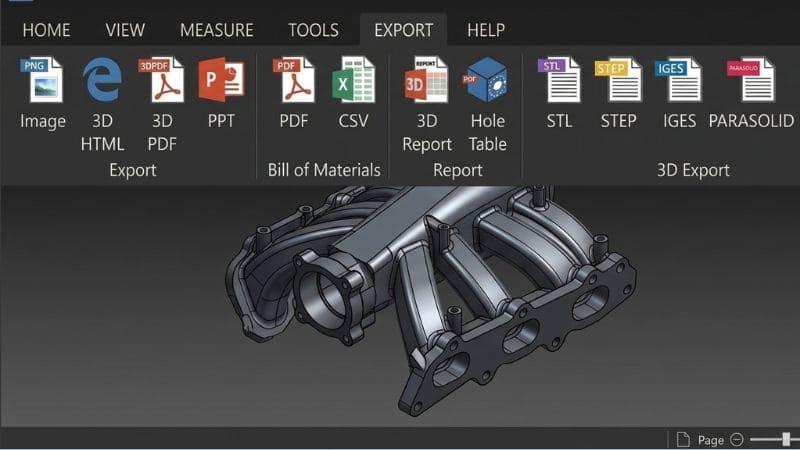
When moving on to the next stage of a project, conversion is often necessary. We often change STEP files to STL when we move from design to making a physical prototype. This process turns the mathematically smooth surfaces into a tessellated mesh that computers can understand.
Most 3D tools have a "Save As" or "Export" option that lets you do this. On the other hand, if we need to move a model from one high-end CAD tool to another, we keep it in a STEP 3D file format so that the person who gets it can still change the geometry.
What Is Another Name For A STEP File?
We usually call them by the acronym, but this format has a few other names and extensions that we might see in our documentation.
ISO 10303
This is the official technical name. It is the global standard for how to represent and share product manufacturing information in a way that computers can understand.
STP and .STEP
These are the two most common file types. They do the same thing, and the choice between them often comes down to how people or organizations name things.
Standard for the Exchange of Product Model Data
This is the full name of the acronym. It shows that we all want to find a way to share 3D data across all professional boundaries.
AP203 / AP214 / AP242
We also call these "Application Protocols" and are often attached to the format. They are different versions of the standard. For instance, one might only focus on geometry, while another might include colors and assembly metadata. Knowing which one we are using helps us make sure that our partners get all the information they expect when they download our STEP files.
Comparison Table Showing the Difference Between a STEP vs OBJ vs IGES vs STL File?
| Caratteristica | STEP (.step, .stp) | IGES (.iges, .igs) | STL (.stl) | OBJ (.obj) |
| Geometry | Precise surfaces, Solids | Wireframes, Surfaces | Triangle facets | Polygons, can ave textures |
| Best Use Case | CAD/CAM & Manufacturing | Legacy data, CAD tools exchange | Rapid prototyping, 3D Printing | Game Design, CGI, Animation |
| Precisione | Extremely High, Exact curves maintained | High, can still have gaps (older softwares) | Low, gets jagged/faceted curves | Low, only for visuals not for engineering |
| Data Type | NURBS (Math-based) | NURBS (Math-based) | Mesh (Polygons) | Mesh (Polygons) |
| Assemblies | Full assembly hierarchies supported | Limited support for complex assemblies | N/A, typically for single shell | Limited, Lacks CAD logic |
| Color/Texture | Basic colors (AP214). | Limited/No | No/ Geometry only | High, Full textures and maps |
| Editability | High, Easy to modify | Moderate, May require stitching | Low, Difficult to change dimensions | Moderate, Easy to move or sculpt vertices |
Common Use Cases and Industries for STEP
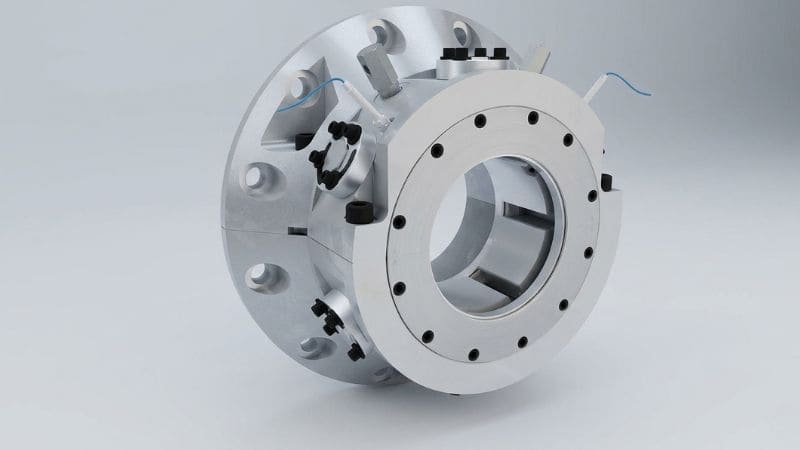
Automotive and Aerospace
We use these files to keep track of huge assemblies in the aerospaziale and automotive industries, where every millimeter matters. Sharing a set of STEP 3D files lets different teams work together on engine parts and body frames without losing any data.
Medico
In designing medical devices, accuracy is a must. We use the format to make sure that the complicated shapes of implants or surgical tools stay perfectly accurate from the first idea to the last check.
Industriale
When we work with outside partners to get specialized parts, giving them STEP files in SolidWorks or other formats makes sure that the parts will fit perfectly into the machine layout.
Prototipi
We usually use STEP files to STL for the final build, but we keep the original design in STEP so we can quickly make changes and improvements based on test results.
Conclusione
In the end, using STEP files is the most reliable way for us to ensure our 3D data is never lost or unusable on any platform. Finally, using STEP files is the most accountable approach for ensuring safe access and preserving the correctness of three-dimensional data over any platform.
This is where we need to be brought into your projects. Contatto DEK today to learn how we can assist you in turning your next project into reality with precision and expertise.
